Table of Contents(目次)
- Understanding Python Imports from the Ground Up
- Using Absolute and Relative Imports Effectively
- Sample Python Project Folder Structure
- How Absolute Imports Work
- How Relative Imports Work
- Common Causes of Errors in Relative Imports
- Summary: Choosing Between Absolute and Relative Imports
- Dynamic Imports with importlib (Advanced)
Understanding Python Imports from the Ground Up
As you have learned so far, Python allows you to load other modules using the import statement. Specifying the path to the target module by tracing the directory structure from the root folder is called an absolute import.
However, as your project grows and the folder hierarchy becomes deeper, tracing the path from the root folder can become cumbersome. In such cases, you can use a technique called a relative import.
Using Absolute and Relative Imports Effectively
This may sound blunt, but as a general rule, it is recommended to use absolute imports. The reason is simple: anyone reading the code can immediately understand “which package the module is being imported from.”
That said, depending on the situation, understanding relative imports is also necessary. Relative imports are recommended only for limited use within the same package (same directory).
The distinction becomes clear if you think about it as follows:
- When crossing over the overall project structure → Absolute import
- When using modules only within the same folder → Relative import
Sample Python Project Folder Structure
Let us consider the following simple folder structure:
myproject/
├─ main.py
└─ package/
   ├─ __init__.py
   ├─ module_a.py
   └─ module_b.py
Here, the project root is myproject, containing a folder named package (a package), and within it are module_a.py and module_b.py.
How Absolute Imports Work
Let us begin with absolute imports. An absolute import specifies the module path starting from the project root. Because you reference everything relative to the project root, the behavior is consistent no matter where the execution starts.
First, set up the contents of module_a.py as follows:
# module_a.py
def hello():
    print('Hello from module_a!')
For example, if you want to use module_a from main.py, you can write the following. Since relative imports support only the from - import - format, we unify the style accordingly.
# main.py
from package import module_a

module_a.hello()
When executed, the output will be as follows:
Hello from module_a!
Thus, an absolute import is a method that specifies the full path based on the root (myproject/).
How Relative Imports Work
Next, let us look at relative imports. Relative imports specify module locations based on the position of the current module. Python uses dots such as . and .. to represent directory levels: . means “same directory,” and .. means “one directory above.”
For example, if you want to use module_a inside module_b.py, which is in the same folder, you can write:
# module_b.py
from . import module_a

def call_hello():
    module_a.hello()
The function call will be made from main.py:
# main.py
from package import module_b

module_b.call_hello()
The result is as follows:
Hello from module_a!
Let us break down what is happening in the code:
- When
module_bis imported, it performs a relative import (from .) ofmodule_afrom the same directory. - When
module_b.call_hello()is executed frommain.py,- the function
module_a.hello()is called.
- the function
- Finally,
print('Hello from module_a!')is executed, and the process ends.
By writing from . import module_a, you can import module_a that resides in the same directory.
Common Causes of Errors in Relative Imports
When using relative imports, beginners often encounter the following error:
Let us open module_b.py in Visual Studio Code and try to run it directly.
ImportError: attempted relative import with no known parent package
This error message indicates that the “parent package” to which the module belongs cannot be determined. When a file is executed directly, Python internally assigns it the name __main__, causing it to lose information about which package it belongs to.
So how can this be addressed? There are two solutions:
- Solution 1: Execute from the project root
- When using the Windows command line:
- Move to the root directory (e.g.,
myproject/) and execute it as a package using thepython -moption.
- Move to the root directory (e.g.,
- In Visual Studio Code, you can perform the same type of execution by adding a setting to
launch.json.
- When using the Windows command line:
- Solution 2: Switch to an absolute import
- Add the path to
myproject/tosys.pathand switch from a relative import to an absolute import (e.g.,from package import module_a).
- Add the path to
Solution 1: Executing from the Project Root
Running from the Command Prompt
In the Windows Command Prompt, perform the following steps:
Use the cd command to change the current directory to the project root (myproject/).
> cd C:\Users\xxx\Documents\python101\myproject
Use the python command with the -m option to execute package.module_b. The hierarchy to the module is specified the same way as in an absolute import.
> python -m package.module_b
The Command Prompt will display the following:

Running from Visual Studio Code
To run the script in Visual Studio Code in the same way as from the Command Prompt, add an execution setting to launch.json.
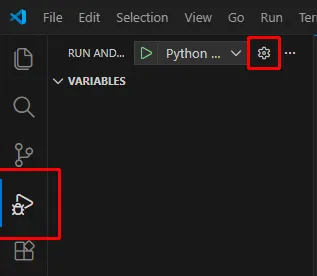
(1) Switch to the "Run and Debug" view and click the gear icon.
(2) Click the "Add Configuration…" button in the lower-right corner.

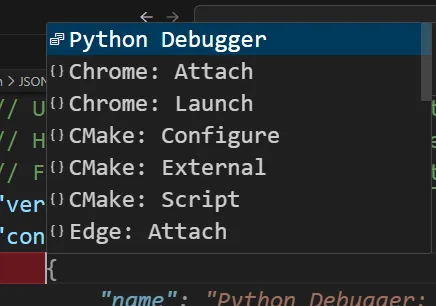
(3) From the displayed menu, select "Python Debugger" → "Module".
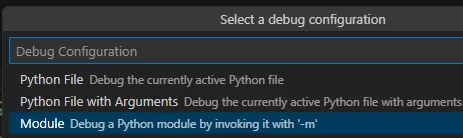
(4) Specify the module to run (package.module_b) and press Enter.

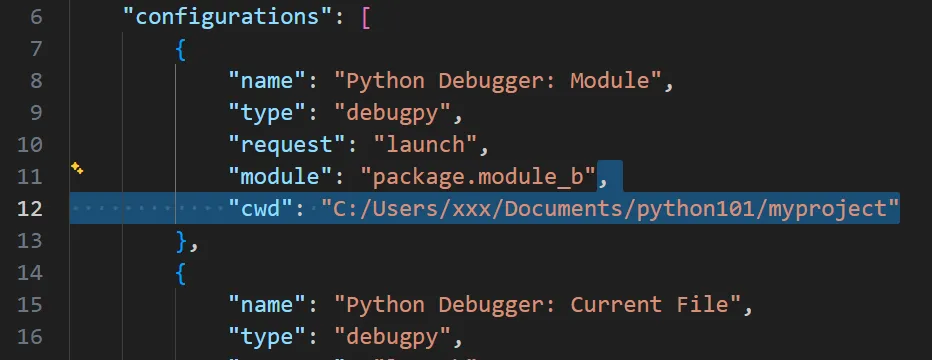
(5) Add the path to myproject/ to the newly added configuration entry as follows:
"cwd": "C:/Users/xxx/Documents/python101/myproject"
(6) Switch the active editor to module_b.py and run the script using "Python Debugger: Module".
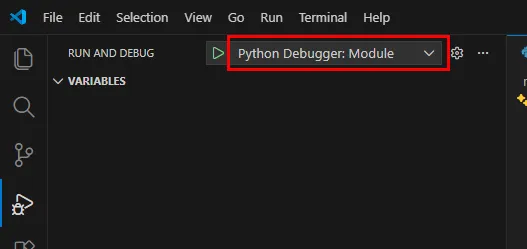
(7) If the console displays the following message, the setup was successful:
Hello from module_a!
Solution 2: Switching to an Absolute Import
Rewrite module_b.py as follows:
# module_b.py
if __name__ == '__main__':
    # Add the root directory to sys.path temporarily as a workaround for relative import errors
    import sys
    sys.path.append('C:/Users/xxxx/Documents/python101/myproject')  # Modify based on your environment

from package import module_a

def call_hello():
    module_a.hello()


if __name__ == '__main__':
    call_hello()
- [Lines 2–5] When
module_b.pyis executed directly, the root directory is added tosys.path. - [Line 7] The import is changed to an absolute import, specifying the path from the root.
By rewriting the script in this way, Python can correctly determine the project root, allowing the import to work properly.
Summary: Choosing Between Absolute and Relative Imports
Let us summarize the key points:
- Absolute import: A method of specifying module paths based on the project root.
- Relative import: A method of specifying module paths based on the location of the current module (using
.or..). - If a relative import causes an error, check the context from which the script is being executed.
- As a general rule, absolute imports are safer.
Dynamic Imports with importlib (Advanced)
As a more advanced topic, Python provides a standard library called importlib. Using this, you can dynamically load modules specified as strings.
Write the following code in main.py and run it. (Restore the execution environment to the usual "Python Debugger: Current File" before running.)
# main.py
import importlib

module_name = 'package.module_a'  # Specified as a string
module_a = importlib.import_module(module_name)
module_a.hello()
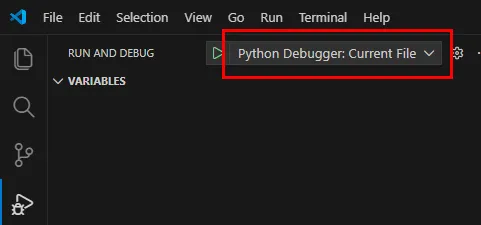
The importlib.import_module() function allows you to choose which module to load at runtime.
Enhancing language_manager.py with importlib
Rewrite language_manager.py in the fortune_cookie project as follows (the docstring is omitted here):
# manager/language_manager.py

import importlib
import sys


def get_language_module(lang_code):
    try:
        # Dynamically import 'message.language_xx' based on lang_code
        module_name = f'message.language_{lang_code}'
        module = importlib.import_module(module_name)
        return module
    except ImportError as e:
        print(f'ImportError: No module exists for the specified language code "{lang_code}".')
        print('Details:', e)
        print('Exiting the program.')
        sys.exit(1)  # Non-zero exit code (indicates an error)
With this implementation, even if new languages (such as fr or cn) are added, you no longer need to modify language_manager.py.